Appearance
Widgets
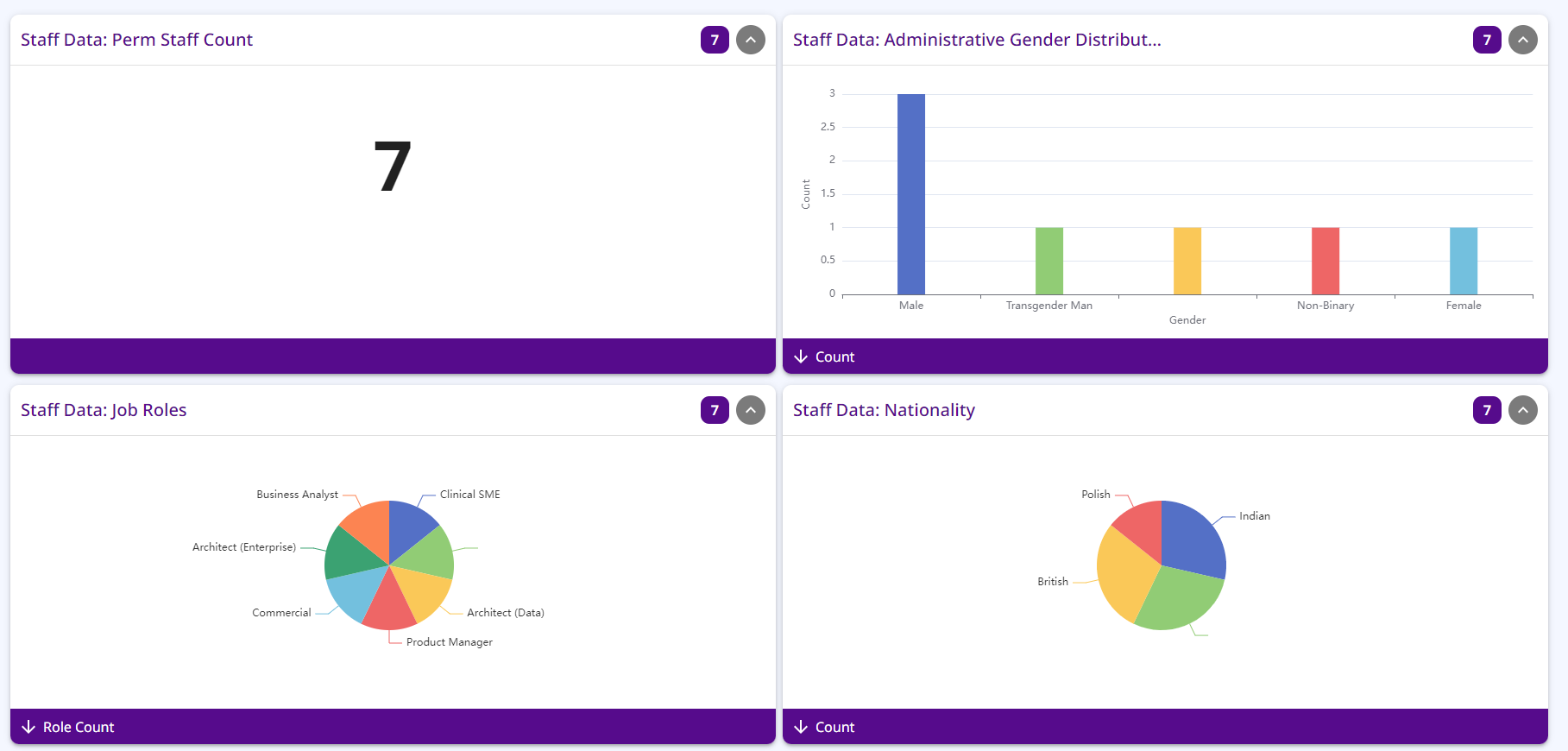
Widgets are the main way to display data in AireFrame. This guide will cover how to create and configure widgets.
Data Pipelines
Data pipelines allow you to transform the data returned from a data set.
A data set contains data points (i.e. rows) which contains data point items (i.e. column values). Fields (i.e. columns) are metadata about the data point items.
If the pipeline is valid, the output of the pipeline will be displayed as a preview.
The possible transformations are:
Filters
These are boolean liquid expressions that remove any data points which evaluate to false
Examples
liquid
{{ numerical_value > 10 }}
{{ string_value == "some_value" }}
Things to note:
- If more than one filter is defined, these are applied as
AND(i.e all filters must evaluate to true for the data point to be included) - Relative dates (
now) and related filters (age) are not available
Mappers
These are liquid expressions that add a new item to each data point
Things to note:
- Mapping expressions cannot reference other mapped fields
- The output datatype is inferred from the expression, however if the expression contains more than one statement it will always evaluate as a string
- The output key must be unique amongst the initial and mapped fields
- Liquid tags
capture,unless,case/whenare not currently supported - Relative dates (
now) and related filters (age) are not available
Group
A group allows you to group the data points by the value of one or more items and apply aggregate transforms to that group
Aggregators
These are operators that aggregate multiple data points into a single data point
- Aggregators can operate over one or more fields (provided the data types are valid for that aggregate method)
- The output key must be unique amongst the aggregated fields
- The
minByandmaxByaggregators retain a reference to the original data point, therefore actions will be available for those data points - however if they are used in combination with other aggregators, actions will not be available - The
Liquidaggregator can be used to build a custom aggreagtion. A liquid expression that operates over the values must be supplied, for example:
liquid
{{ values | map: 'family_name' | join: ", " }}Pipeline Output
The output of the pipeline is the data points after all transformations have been applied. You can see the output of the pipeline at the bottom of the pipeline configuration page, it will also be the available fields when creating a visualisation.
Depending on the transformations applied, the fields will either be a single value or array of values (per data point). Single values are presented as Key - DataType, where-as array values are presented as Key - DataType[].
There are restrictions on where array values can be used - usually they cannot be used as the input for other transformations, they cannot be shown on charts, and the cannot be sorted. However you can customise how they are displayed in tables or a WYSIWYG visualisation by using a liquid expression in the visualisation designer.
Configuring Widgets
When creating a widget, you must first select the type of widget you want to create. The available types are:
- Visualisation - A visualisation based on a data set
- IFrame - An iframe that displays external content
Visualisations
The designer is split into two stages:
Design the Visualisation
First, choose your data pipeline. Next, choose how you want to display the data (The options will depend on the output of the pipeline).
The possible visualisations are:
- Table -Always available
- Graph - Available for pipelines with at least one numerical or date output field
- Pie Chart - Available for pipelines with at least one numerical or date output field
- WYSIWYG (HTML) - Available for aggregated pipelines (except
mode)
Once you are happy with your visualisation click next to continue.
Table, Graphs and Pie Charts
Drag and drop the series you wish to display on the visualisation.
The series display name can be customised, and you can format the display value using a liquid expression e.g. {{ value | round: 2 }}
NOTE
Sorting and filters are applied on the actual value, not the display value.
If you want to filter or sort by a liquid formatted value, you can use a mapper in the pipeline to create a new field with the formatted value.
A hidden series will not be displayed in the visualisation but can be used to filter and sort the data.
For table visualisations, two additional display options are available:
- Display column headers - Shows or hides the column heading row. This is unchecked by default.
- Show actions - Shows or hides the actions column (e.g. Start Task, View Form) for each row. This is checked by default.
NOTE
Unchecking Show actions will also improve the loading speed of the widget. So if the actions are not needed we highly recommend unchecking this option.
WYSIWYG (HTML)
The WYSIWYG editor allows you to create a custom HTML-based visualisation.
In order to display the data, you must use the liquid to reference the series by key. This will be replaced with the data when the visualisation is rendered.
In order to give you more fine-grained control over the visualisation, you may switch to the liquid editor by clicking the toggle in the top-right. This uses the Monaco editor to provide syntax highlighting and code completion.
The available HTML tags can be found in the formatting guide.
Add metadata
Finally set the title, default ordering, any default filters, and whether the widget should be available on the portal site.
INFO
The default order and direction are used when the visualisation is first loaded. The user can change this when viewing the visualisation.
INFO
Only widgets marked as Use in portal will be available for display on the portal site.
This cannot be changed once the visualisation is created.
Default Filters
Default filters allow you to define a filter that will be applied when the visualisation is first loaded. The users can change this filter when viewing the visualisation.
- Filters are applied as
AND(i.e all filters must evaluate to true for the data point to be included). - Filters are only available for visualisations based on cacheable data sets.
- When a filter is applied on an array field, it will match if any of the values in the array match the filter condition.
- An equals (
=) filter on aDateTimefield matches any value within the selected minute, because the date-time picker has no seconds.
They are not available for WYSIWYG visualisations as they use a single data point.
IFrames
IFrame widgets allow you to embed external content into AireFrame. This can be useful for displaying content from other systems.
All iframe widgets must use a secure https URL.
TIP
The site must allow embedding. If the site does not allow embedding, the iframe will fail to load.
Context
All widgets allow you to consume the context of the page they are displayed on. This allows you to create dynamic widgets that change based on the subject or structural entity being viewed.
The context is available as a liquid object that follows the structure:
json
{
  "tenant": {
    "key": String
  },
  "subject": {
    "internalId": String,
    [custom_field_key]: [custom_field_value] (for each subject custom field)
  },
  "structuralEntity": {
    "key": String
  },
  "structureType": {
    "key": String
    [structure_type_key]: {
       [custom_field_key]: [custom_field_value] (for each structure type custom field)
    }
  }
}
EXAMPLES
- Tenant key:
{{ tenant.key }} - Subject internalId:
{{ subject.internalId }} - Subject custom field value (where custom field key is name ):
{{ subject.name }} - Structural entity key:
{{ structuralEntity.key }} - Structural entity custom field value (where structure type is organisation and custom field key is name):
{{ structureType.organisation.name }}
TIP
The values available in the context depend on what section of the site the widget is being displayed on.
| Section | Available Context |
|---|---|
| Location | Tenant, Structural Entity, Structure Type |
| Subject Preview | Tenant, Subject |
| Subject Record | Tenant, Subject |
| Subject Portal | Tenant, Subject |
If you try to access a value that is not available in the context, an empty string will be returned.
Displaying Widgets
Dashboards
In order to view a visualisation, it must be added to a dashboard. A dashboard is a collection of widgets that can be displayed on different sections of the site.
INFO
Only dashboards marked as Use in portal will be available for display on the portal site.
This cannot be changed once the dashboard is created.
Sections
The section configuration page allows you to set which dashboards should be shown on each section of the site.
The available sections are:
- Location - This is where you see the widgets on the structural entity overview page. In this section, the widgets are populated with data for all subjects located within that structural entity and its children.
- Only visualisations based on cacheable data sets will be viewable in this section, a warning will be shown for non-cacheable visualisations
- Subject Record - This is where you see the widgets on the subject page with data only for that subject
- Subject Preview - This is where the subject information and widgets are shown on the right hand side as a preview, accessed by pressing
CTRLwhile clicking on the subject from the subject lists. - Subject Portal - This is what a subject will see when they log in to the portal, with data only about themselves.
TIP
You can set which dashboard should be shown as the default for each section.
This is the dashboard that will be shown if the user has not previously selected a dashboard to show.