Appearance
Subject Lists
Subject lists display subjects and their associated structured data for a chosen scope. A subject list allows you to:
- View subjects for a specific location
- Search for subjects that match a term
- See every subject when viewing the tenant level
The subject list configuration allows you to define which fields are shown, as well as setting any default filter options.

Configuring Subject Lists
Data Pipeline
To configure a subject list, you must first have configured a data pipeline. See Data Pipelines for more information.
There are a few restrictions on which data pipelines can be used in subject lists:
- The data pipeline must be based on a cacheable data set (i.e. a data set from a data source that supports the
DataChangeNotificationcapability) - The data pipeline must contain at least one aggregator to ensure only a single data point is returned for each subject.
Tip
A common choice is to use the MaxBy aggregator on a DateTime field to get the most recent data point for each subject.
Fields
Once you have selected the data pipeline, you can choose which fields to display on the subject list. The fields are displayed left to right based on the order they are displayed here, e.g. the first field will be the leftmost column.
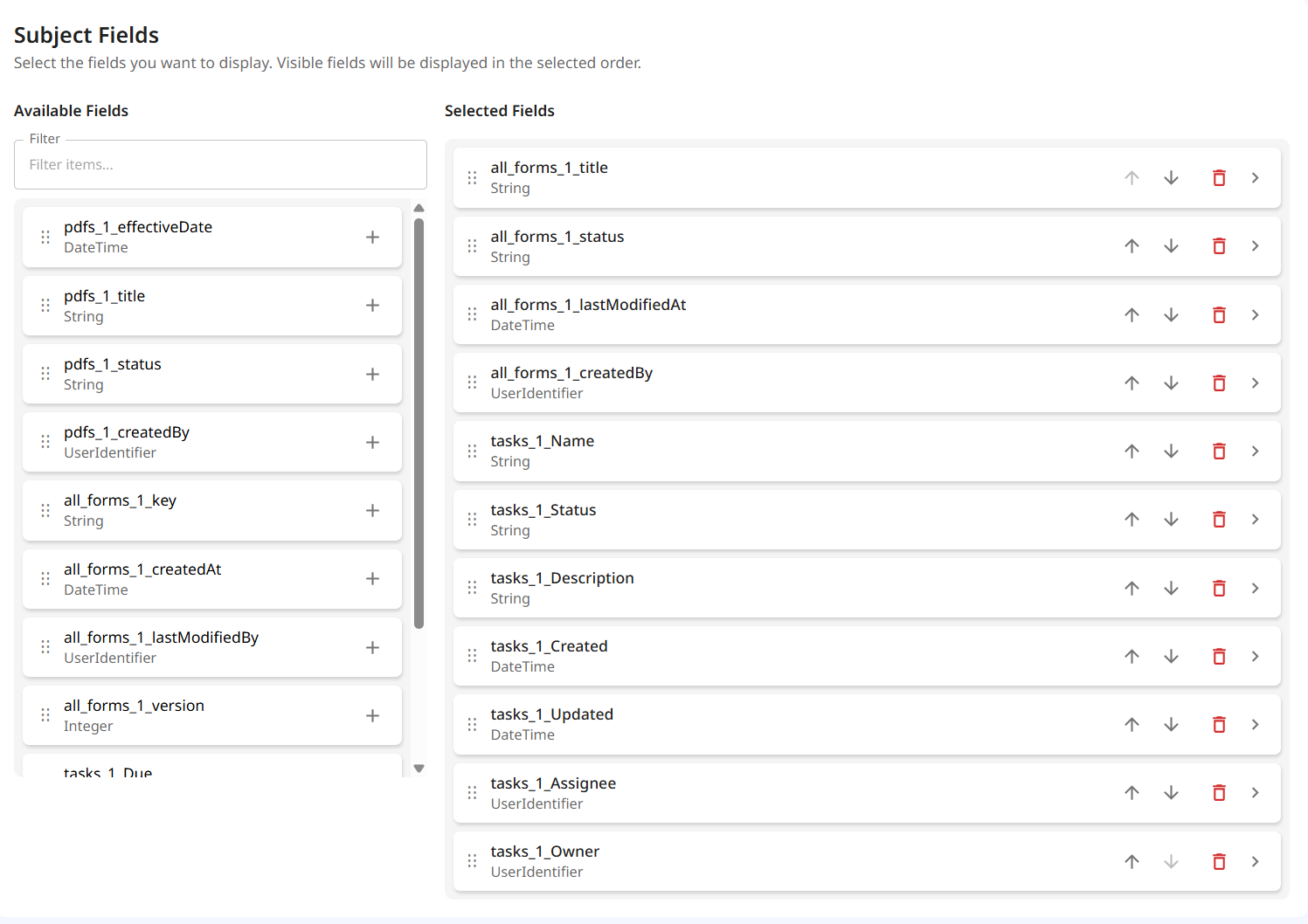
Clicking on the selected fields will allow you to change the display name for the field, as well as being able to format the display value using a liquid expression e.g. {{ value | round: 2 }}
NOTE
Sorting and filters are applied on the actual value, not the display value.
If you want to filter or sort by a liquid formatted value, you can use a mapper in the pipeline to create a new field with the formatted value.
The widget context is also available in the liquid formatter. All fields are available, except the structuralEntity and structureType fields when viewing the subject list at the tenant level.
A field can be marked as hidden, if you want to use it for filtering or sorting, but do not want it to be displayed in the subject list.
Default Filters
Default filters allow you to define a filter that will be applied when the subject list is first loaded. The users can change this filter when viewing the subject list.
- Filters are applied as
AND(i.e all filters must evaluate to true for the subject to be included). - When a filter is applied on an array field, it will match if any of the values in the array match the filter condition.
- An equals (
=) filter on aDateTimefield matches any value within the selected minute, because the date-time picker has no seconds.
Filters cannot be used when searching for subjects, as the search term takes precedence.
Migration
From AireFrame 2.44.0, subject lists must be configured using the above configuration, and can no longer be added to the subject list section of the widget configuration.
Previously configured subject lists will continue to work as before, but it is recommended to migrate them to the new configuration.
Subject lists using a single widget dashboard
In order to migrate this configuration, all that is required is to create a copy of the existing data pipeline and add a MaxBy/MinBy aggregator over the default ordering field, depending on the default order direction used in the widget.
IMPORTANT
If the previous behaviour relied on filtering the entire data set for each subject, each field that was filtered on should be mapped to an array aggregator in the new data pipeline.
You can then create a new subject list using this data pipeline, and configure the fields to match the previous configuration.
Subject lists using a multi widget dashboard
In order to migrate this configuration, you will need to create a linked data set that every data set that each widget draws from.
The setup of this linked pipeline will depend on what data you want to present, but generally most will use a MaxBy aggregator over a DateTime field to get the most recent data point for each subject.
IMPORTANT
If the previous behaviour relied on filtering the entire data set for each subject, each field that was filtered on should be mapped to an array aggregator in the linked data set.
Once you have created the linked data set, you will then need to create a pipeline for the subject list that draws from this linked data set. This will need also need an aggregator, a MaxBy over any field will work.
You can then create a new subject list using this data pipeline, and configure the fields to match the previous configuration.